Unforgettable car AI video: the car fades in, drives in or is there from the start. How do I fix it?
Updated:
Short answer
The reveal is the hardest beat for a video model, so the car can fade in, drive in or sit behind you from the start. Run the free 5-second preview, use a clean waist-up photo with no car in it, and try again if needed. A finished video with a softer reveal still counts as a normal result.
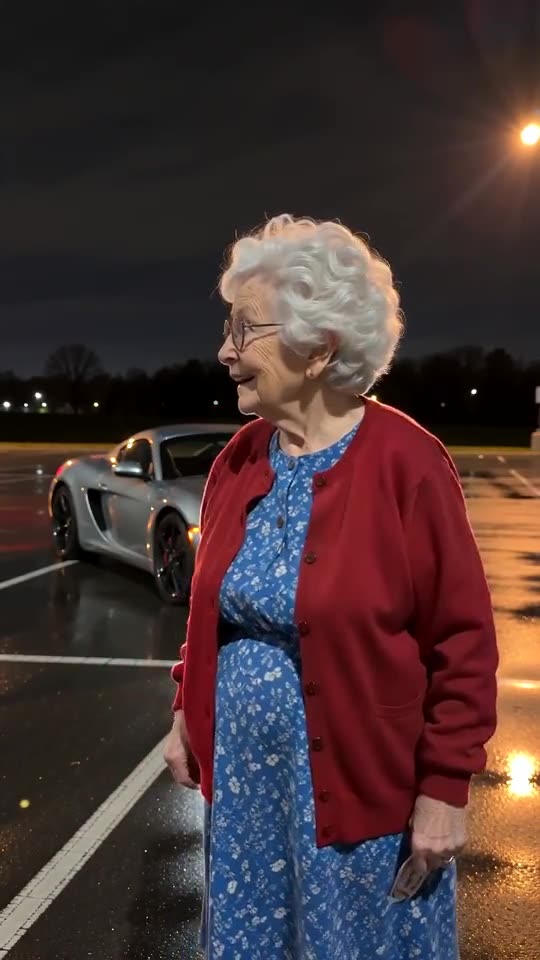
What you should see
- An empty lot behind you at the start.
- Two red cards raised to the lens and swiped across it.
- A sports car that is suddenly there when the cards clear.
- A glance back and both hands on your head.
Why the reveal goes wrong
- One continuous shot: the model has to make a car appear without a cut, so it sometimes blends it in.
- A car already in your photo: the model may keep it in the background from the start.
- A very short preview: the 5-second preview squeezes the beats, so the swipe and the car can merge.
What to try
Retake the photo against a plain background with nothing parked behind you, then run the preview again. Each run is different, so a second run often gets a cleaner reveal. The free redo page explains what a second full run costs.
Questions people ask
Can I make the car appear later or sooner?
No. The timing comes from the fixed scene, and the site has no setting for it.
Is a slow fade-in a failed video?
No. Only a run that never finishes counts as failed, and its credits come back by themselves. A finished video with a softer reveal is a normal result.
Does the full video do the reveal better than the preview?
Usually the full video has more room for the beats. Use the preview as a quick check on your face and the overall look.
Make your own Unforgettable car video
Upload one photo and try a free 5-second preview. No subscription, no watermark.
Make my video